A circular arrives as a PDF, but it needs a few changes. A grade report from an application can only be downloaded as a PDF, yet it has to be recalculated in Excel. Photos of document pages on a phone must be combined into one PDF for the Ministry of Religious Affairs office. Teachers and staff at madrasahs and boarding schools face tasks like these almost every week.
Usually we open a free online PDF converter, upload the document, and wait for the result. It is convenient, but it leaves one question unanswered: where do our documents go? Report cards, signed letters, and student data are a trust that should not end up on servers we do not know.
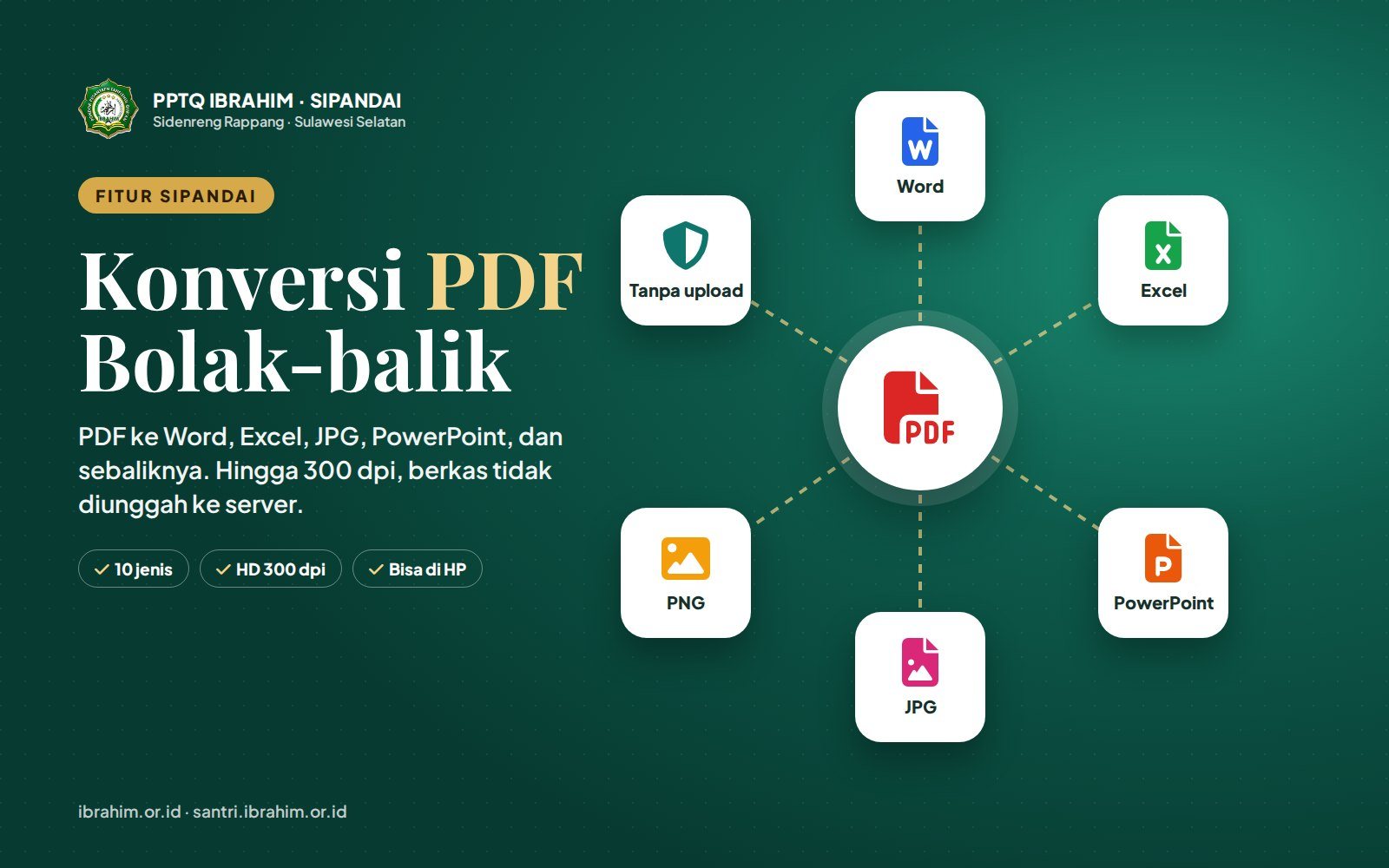
That is why SIPANDAI, the student information system of PPTQ Ibrahim, now provides a PDF Conversion menu. It converts PDF to Word, Excel, JPG, PNG, and PowerPoint, and back from Word, Excel, JPG, PNG, and PowerPoint to PDF, at up to 300 dpi. Most importantly, files are processed on your own phone or laptop and never uploaded to the server.
Two-way PDF conversion in SIPANDAI: ten conversion types in one menu.
Ten Conversion Types in One Menu
The Tools → PDF Conversion menu is split into two groups.
From PDF
- PDF to Word: with two output choices, exactly like the original or editable text.
- PDF to JPG and PDF to PNG: each page becomes an image at up to 300 dpi. Multi-page PDFs are bundled into a single ZIP file.
- PDF to Excel: text and numbers are arranged into rows and columns. Indonesian-formatted numbers such as 1.250.000 or 85,5 become real numbers you can calculate with.
- PDF to PPTX: each page becomes one slide, ideal for showing a document in a meeting.
To PDF
- Word to PDF: pages are split at paragraph or table-row boundaries, so no line is cut in half.
- JPG to PDF and PNG to PDF: many photos at once, in the order you choose, on A4 pages or at the image's own size.
- Excel to PDF: with an option to repeat the table header row on every page.
- PPTX to PDF: each slide becomes one page.
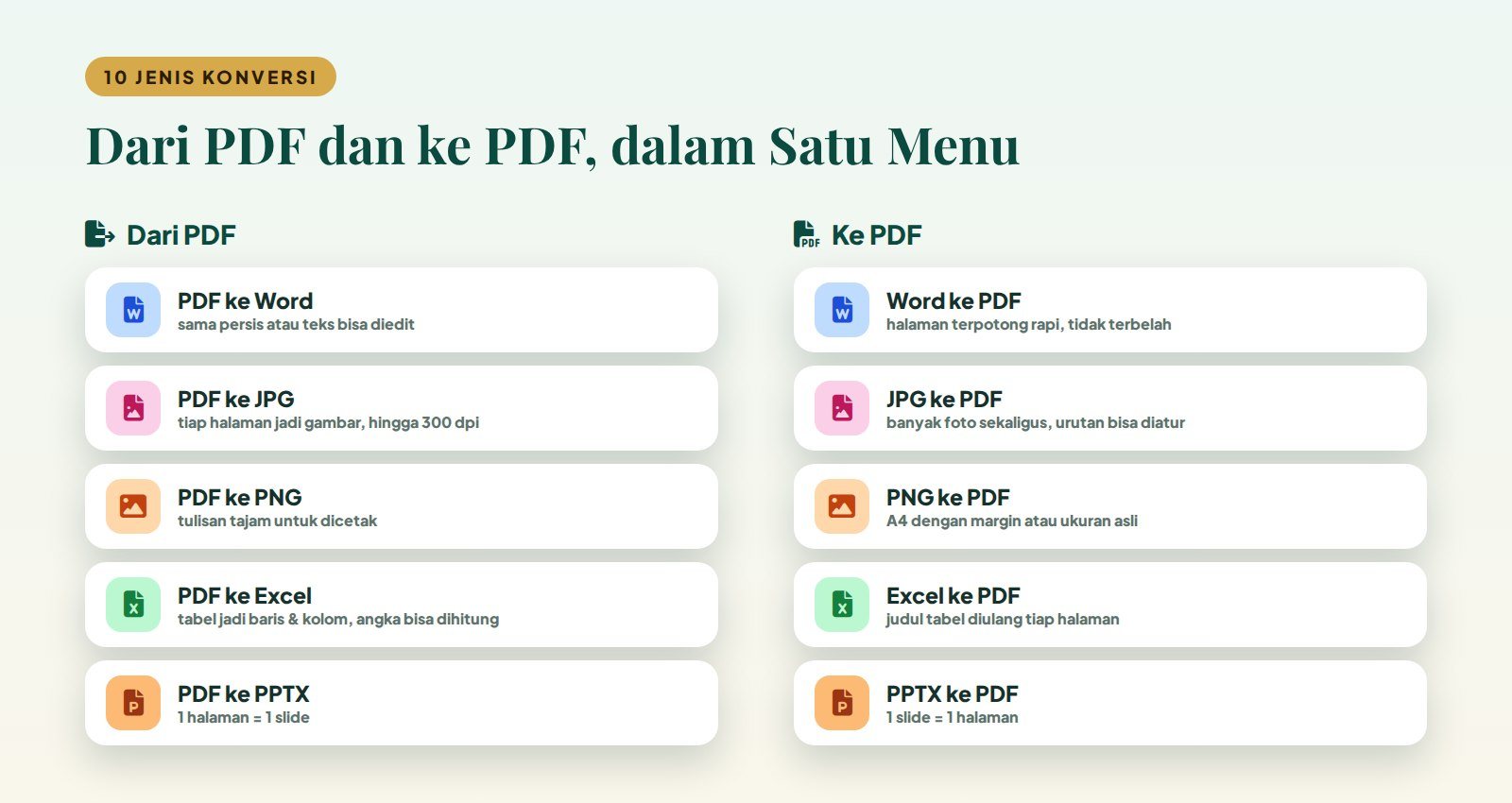
Five conversions from PDF and five conversions to PDF.
How to Convert PDF to Word in 3 Steps
PDF to Word is the conversion people need most. The steps are:
- Sign in to SIPANDAI, open Tools → PDF Conversion, and tap PDF to Word. Choose or drag in the PDF file.
- Choose the quality (HD 200 dpi is recommended) and the Word output you need, then press Convert now.
- Wait until every page has been processed, then press Download. The .docx file is saved in your Downloads folder.
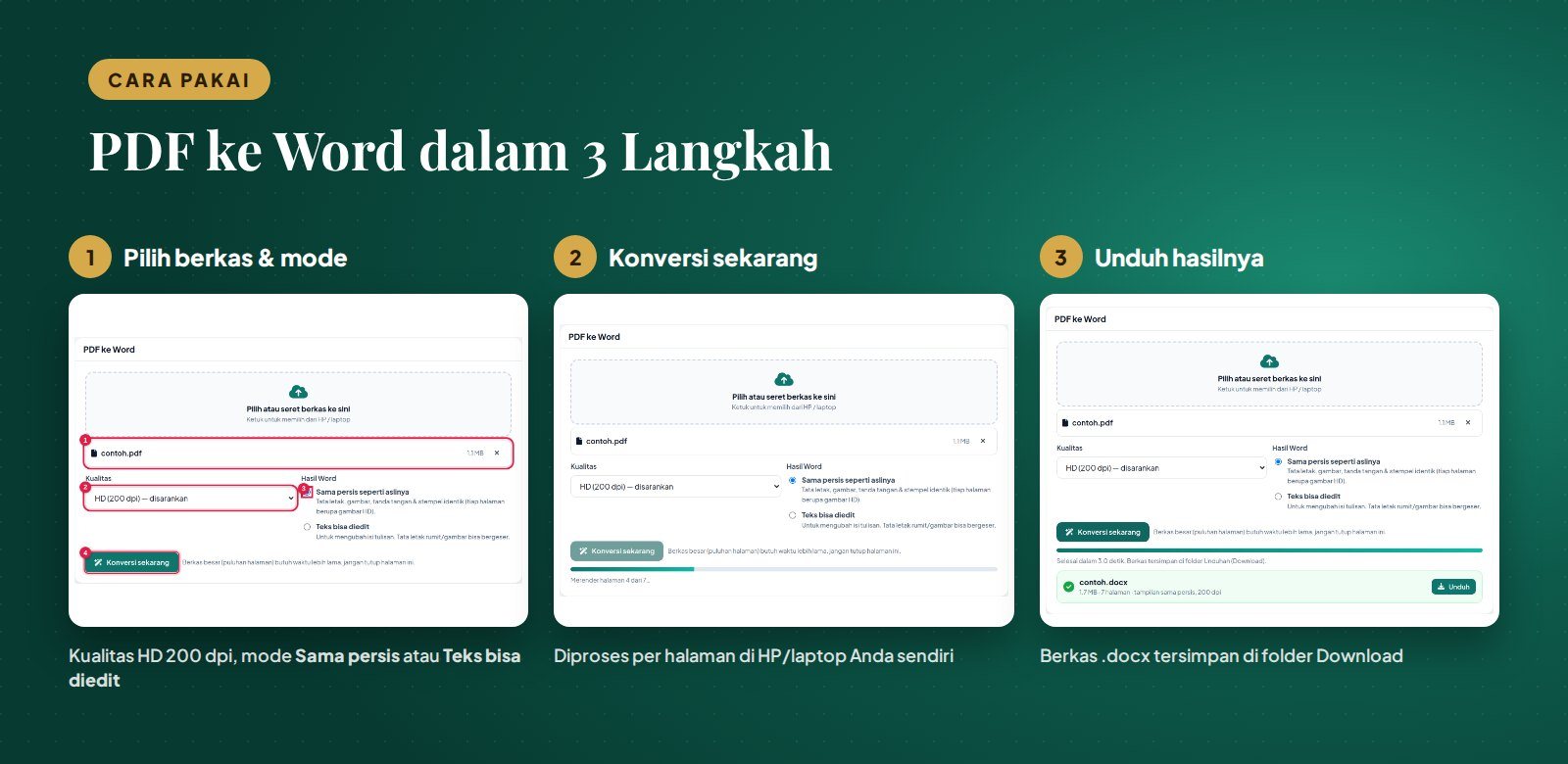
Choose the file, convert, and download.
Exact Copy or Editable Text?
This choice is what sets the menu apart from many other converters. Pick the one that fits your need:
- Exactly like the original. Layout, images, signatures, and stamps are identical to the PDF. Each page is placed in Word as an HD image. This is the right choice for archives, signed letters, and scanned PDFs.
- Editable text. Text, bold, and italics can be changed, and simple tables keep their structure. This is the right choice for editing a letter or copying text. Complex layouts may shift, so please check the result.
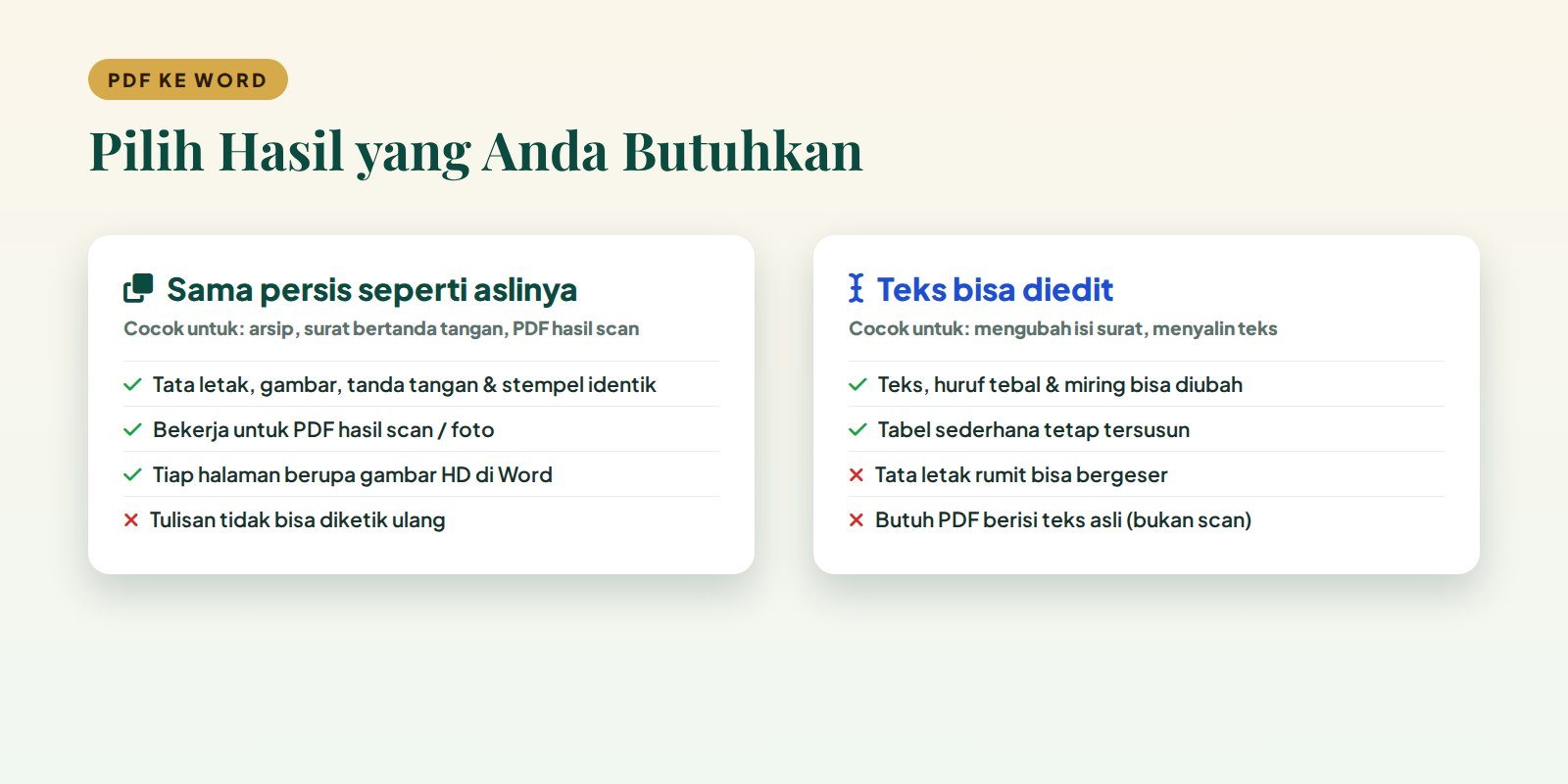
The two PDF-to-Word options with their strengths and limits.
Keep in mind that scanned or photographed PDFs contain no text, only images. For such files, use Exactly like the original. If the text option is used on a scanned page, SIPANDAI adds a note on that page so you know why.
PDF to Excel for Grade Reports and Attendance Lists
Many school and madrasah applications only offer PDF downloads. With PDF to Excel, tables in the PDF are rebuilt as rows and columns. You can put all pages on one sheet or one page per sheet. Grades, attendance counts, and rupiah amounts are recognized as numbers, so they can be summed or averaged right away.
This works best with PDFs produced directly by an application (not scans), such as grade reports, attendance lists, and financial reports.
Combining Document Photos into One PDF
This is often needed when submitting files: photos of family cards, birth certificates, diplomas, or letter pages taken with a phone camera. Tap JPG to PDF, select several photos at once, set their order with the arrow buttons, and choose the page size: A4 with 1 cm margins (ready to print) or the image's own size. Photos are inserted without recompression so they stay sharp, and sideways phone photos are automatically turned upright.
Word, Excel, and PowerPoint to PDF
- Word to PDF for .docx files. Pages are split neatly so paragraphs and table rows are not cut.
- Excel to PDF for .xlsx, .xls, and .csv files. Tick repeat the table header row on every page so long tables stay easy to read.
- PPTX to PDF for presentations. If slides cannot be read, re-save the file as .pptx from PowerPoint or Google Slides.
Older Word and PowerPoint files (.doc and .ppt) need to be re-saved as .docx or .pptx first.
Everyday Uses at the School
- Administration office: a PDF circular from the education office or the Ministry is converted to Word for adjustment, then back to PDF after signing.
- Homeroom teachers: a PDF grade report from an application is converted to Excel to calculate class rankings or averages.
- Admissions committee: photos of applicants' family cards, birth certificates, and diplomas sent via WhatsApp are combined into one PDF per child.
- Mentors and teachers: study materials or activity schedules in Word are turned into PDFs so they look the same on every student's and parent's phone.
- Leaders and the Board of Experts: PDF reports are converted to PowerPoint for evaluation meetings.
- Treasurer: Excel reports are turned into PDFs with the header row repeated on every page for easy checking.
Safe: Documents Never Leave Your Device
The whole conversion runs in the browser on your phone or laptop. The conversion programs are loaded from SIPANDAI's own server, not from a third-party conversion site. The files you choose are not sent anywhere; the results are saved straight to your device's Downloads folder.
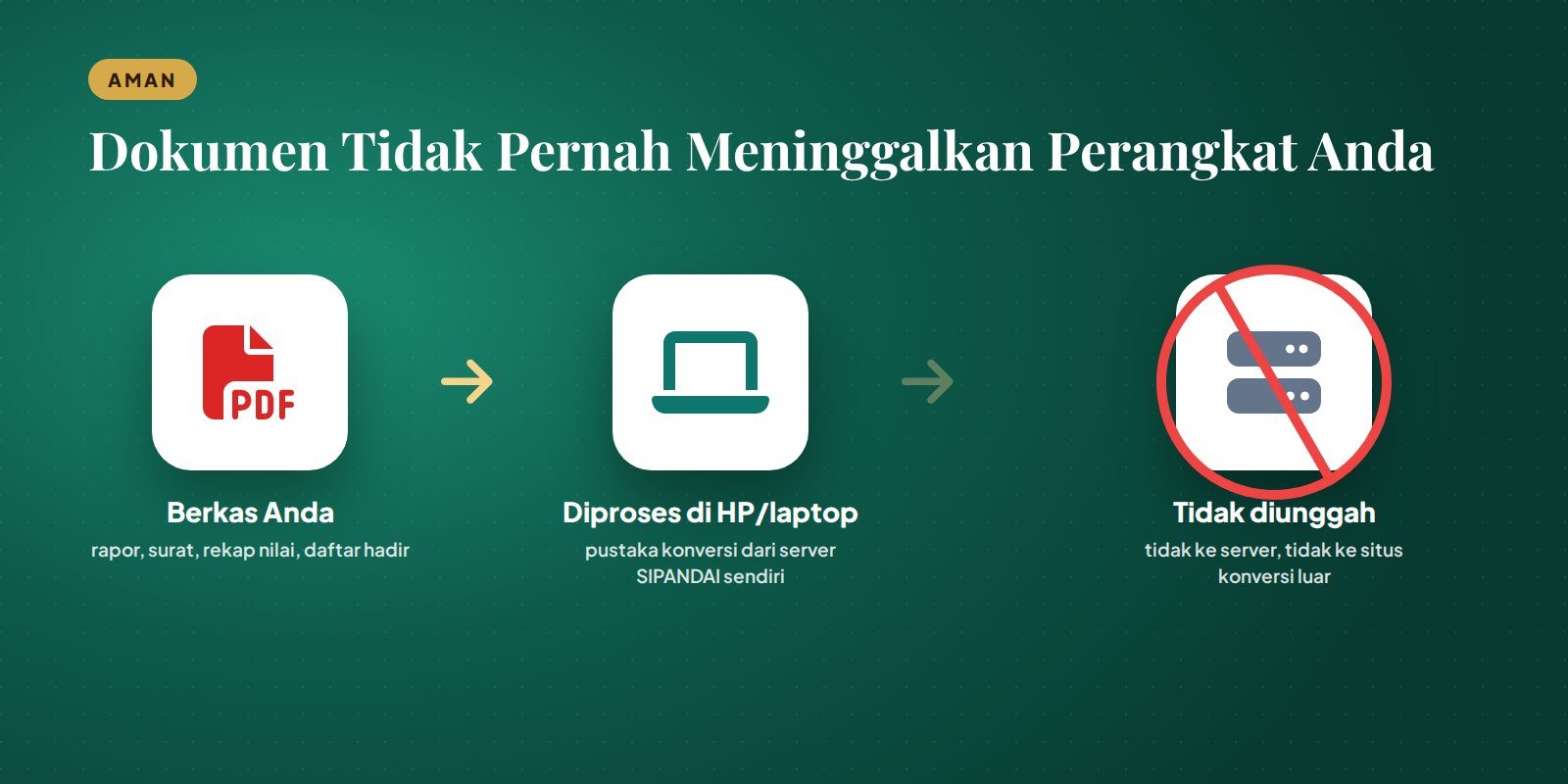
Files are processed on your own device and are not uploaded to the server.
For boarding schools and madrasahs this is about more than convenience. Keeping report cards, letters, and student data confidential is part of the trust placed in us by the parents who entrust their children to us.
Tips for the Best Results
- Choose HD (200 dpi) for everyday needs and Ultra HD (300 dpi) for reprinting.
- If your phone slows down or runs out of memory, choose Standard (150 dpi) or split the PDF into several parts.
- Do not close or leave the page until the Download button appears, especially for files with dozens of pages.
- Password-protected PDFs must be unlocked first.
- Special fonts that are not on your device may be replaced by similar ones when converting to PDF. Check the result before printing or sending.
Who Can Use It?
The Tools → PDF Conversion menu is available to all teacher, staff, administration, mentor, leadership, and Board of Experts accounts in SIPANDAI. Sign in at santri.ibrahim.or.id (Teacher / Mentor / Staff login) and open the Tools menu. It works on phones and laptops without installing any extra app.
Download the PDF Conversion Guide
An 11-page illustrated guide explains the ten conversion types, what each quality setting means, tips for scanned PDFs, and how to solve common problems. It can be read on a phone, printed, or shared with colleagues. The guide is written in Indonesian.
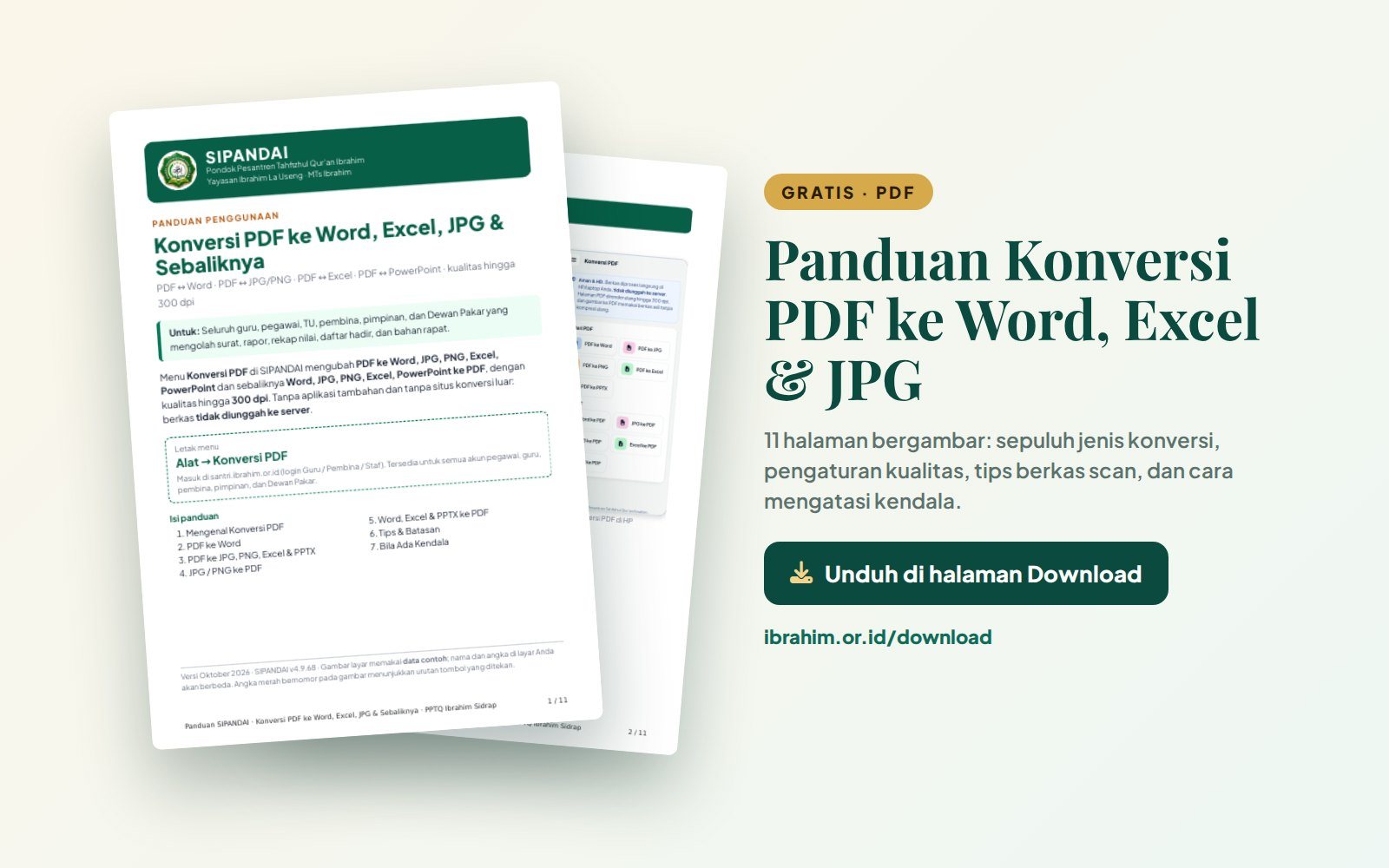
The PDF Conversion guide is free on the Download page.
Download it at ibrahim.or.id/download, in the SIPANDAI guides section (Panduan SIPANDAI Guru & Pembina). The Photo Editing & Layer Studio guide is on the same page.
Frequently Asked Questions
Is PDF conversion in SIPANDAI free?
Yes. The menu is part of SIPANDAI and can be used by all PPTQ Ibrahim teachers and staff with no subscription.
Are my documents uploaded to the internet?
No. Documents are processed on your device and the results are saved straight to your Downloads folder.
Why can't I type in my PDF-to-Word result?
You probably chose Exactly like the original, or the PDF is a scan. Choose Editable text for PDFs that contain real text.
Does it work on a phone?
Yes. Every conversion runs in the phone's browser. For large files, a laptop is faster.
Which files are supported?
PDF, Word (.docx), Excel (.xlsx, .xls, .csv), PowerPoint (.pptx), JPG, and PNG.
Closing
With the PDF Conversion menu, administrative work that used to need several apps and websites is now done in one place, without handing documents to anyone else. If you run into a problem or have a suggestion, please let the SIPANDAI administrator know.
For parents looking for a tahfizh boarding school in Sidrap with orderly and transparent administration, information on new student admissions at PPTQ Ibrahim is on the Admissions page.