
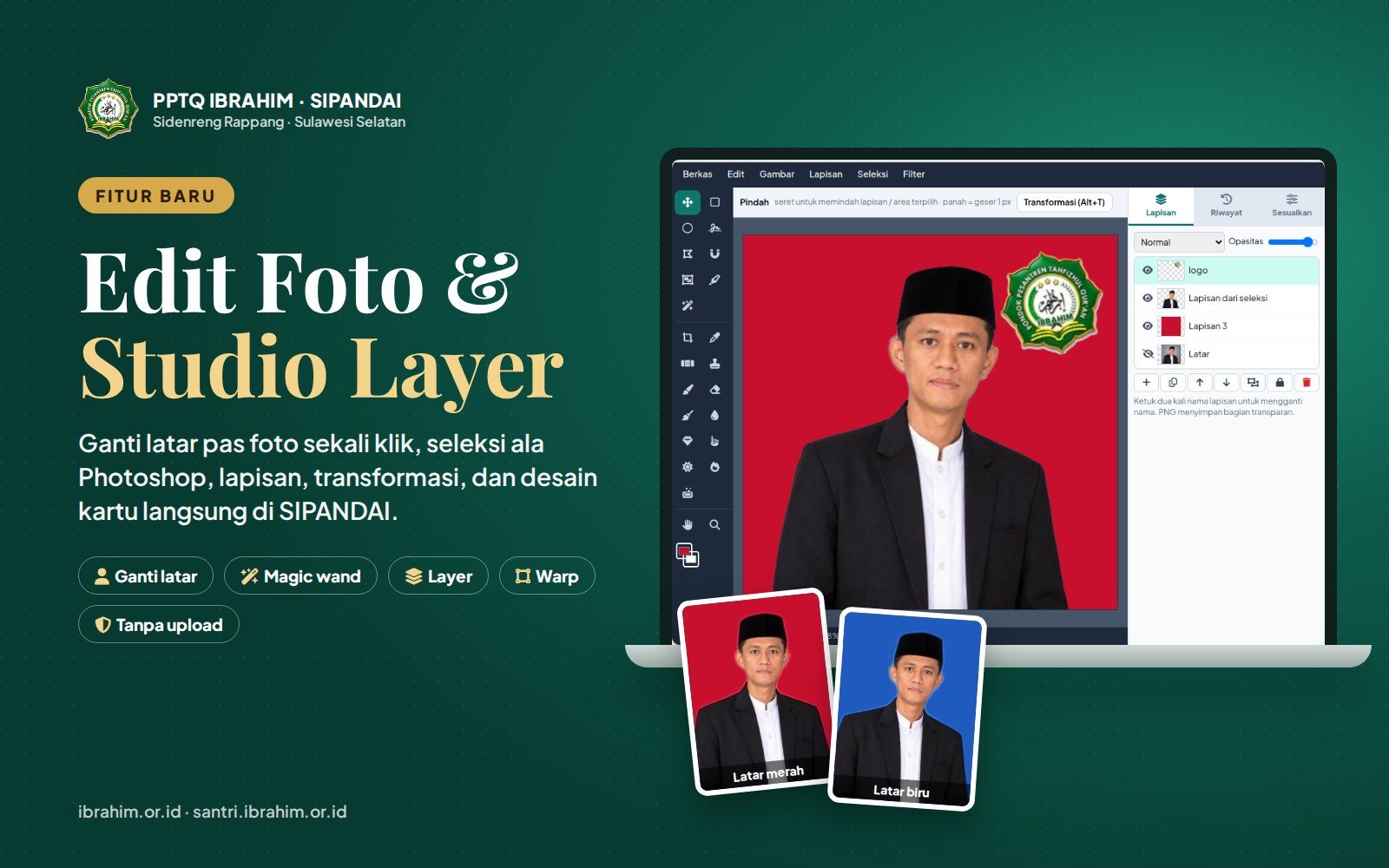
Dear teachers, staff, and dormitory mentors, how many times a month do we need to change the background of a passport photo? For new student registration files, student ID cards, teacher records in the Ministry of Religious Affairs systems, diplomas, and profile photos on the school website. Until now, that small task often meant jumping between apps, uploading student photos to websites we know nothing about, or taking them to a photo studio.
Starting today, the job can be done inside SIPANDAI. The Tools → Photo Editing & Design menu now has three modes: Photo Edit for one-click background and color changes, Studio (Layers) for layered work just like in Photoshop, and Design & Text for cards, posters, and social media posts. Every photo is processed on your own phone or laptop and is never uploaded to the server.
Photo Editing & the Layer Studio are now available in SIPANDAI for all teachers, staff, mentors, leaders, and the Board of Experts.
What Is New in the Photo Editing & Design Menu?
This announcement summarizes the features you can use today. The complete illustrated guide (30 pages) is free to download on the Download page.
- One-click passport photo background change: a grey background becomes red, blue, white, green, transparent, or an image of your choice.
- Select objects and change their color: for example, change the color of a shirt or uniform while keeping the folds of the fabric.
- Studio (Layers): a full set of selection tools (marquee, lasso, polygonal lasso, magnetic lasso, magic wand, quick selection, object selection, select subject), layers, transformations, brushes, and retouching.
- Transformations: scale, rotate, skew, distort, perspective, warp, and horizontal/vertical flip.
- Retouching: blur, sharpen, smudge, dodge, burn, sponge, spot healing brush, clone stamp, and magic eraser.
- Crop, image size in percent, and canvas size.
- Layers and History panels on the right, just like professional photo editors.
- Save as PNG with a transparent background, JPG, WEBP, or a layered project you can continue later.
- Print-ready passport photos: 2×3, 3×4, and 4×6 cm at 300 dpi, including 4R sheets with 4, 9, or 16 photos.
- Design & Text: templates for student ID cards, announcement posters, YouTube thumbnails, 1:1 posts, 9:16 stories, and achievement greetings.
Change a Passport Photo Background in One Click
This is the task we do most often. It works like this:
- Open Tools → Photo Editing & Design, choose Photo Edit, and open a photo from your gallery or laptop.
- On the Background tab, press Remove background (one click). Artificial intelligence (AI) separates the person from the background.
- Tap a new background color: red, blue, white, green, transparent, or an image.
- If needed, adjust Edge smoothness for hair and headscarves, Shift edge, and Remove old background tint.
- On the Download tab, choose a 3×4 cm passport photo at 300 dpi or a 4R print sheet, then press Download photo.
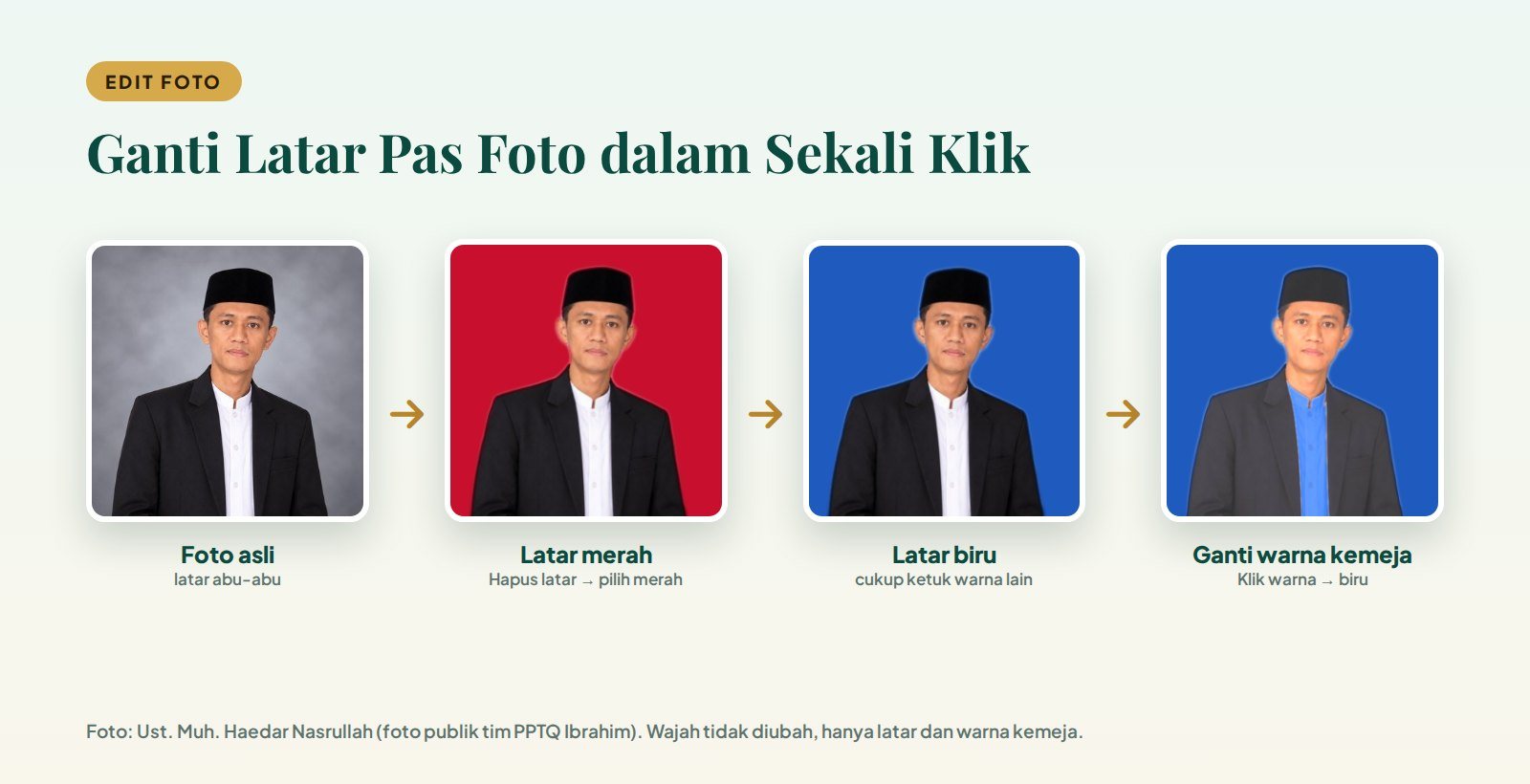
From the original grey background to red, blue, and even a new shirt color. The face is not altered.
The AI model loads once the first time it is used, in about 5–15 seconds. After that the process is quick, even on a modest connection. The face and clothing are not changed; only the background is replaced. That makes the tool suitable for diploma photos, student ID cards, admission files, and teacher records.
Select Objects and Change Colors as in Photoshop
Ever needed to change the color of a uniform in a photo because the one worn on the day did not match the requirement? On the Selection tab you can select part of a photo in several ways:
- Automatic selection (AI): subject, background, and (when the full model is loaded) clothing, hair/headscarf, skin, and accessories.
- Click an object (AI): tap an item in the photo and the AI selects its shape.
- Click a color: like the Magic Wand, with a tolerance setting and an option to protect face and hand skin so the skin is not recolored.
- Selection brush to add or remove areas by hand.
Once the area is selected, tap a new color and press Apply. The texture, folds, and shadows of the fabric are preserved, so the result still looks natural.
Studio (Layers): Layered Work Just Like in Photoshop
For more detailed work, such as a profile photo with the school logo, cutting a person out for a poster, or tidying up event documentation, use Studio (Layers). It will feel familiar to anyone who has used Photoshop or Photopea:
- Menu bar at the top: File, Edit, Image, Layer, Select, and Filter, with keyboard shortcuts.
- Toolbox on the left: selection tools, crop, eyedropper, retouching, brushes, hand, and zoom.
- Options bar above the image: brush size, tolerance, selection mode, and other settings for the active tool.
- Right panel: Layers, History, and Adjustments (exposure, levels, hue/saturation, and more).
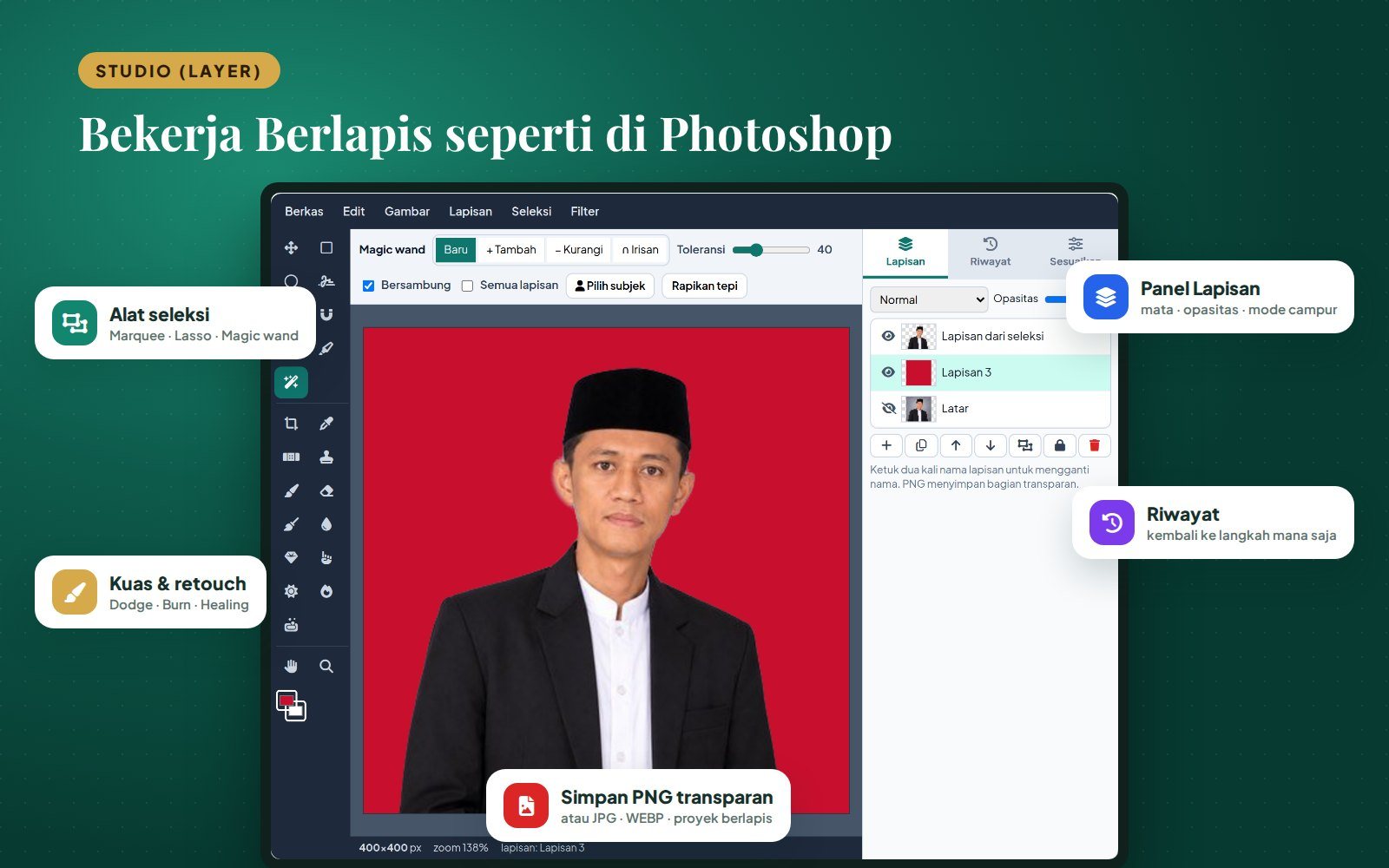
Studio (Layers): tools on the left, layers and history on the right.
A typical everyday task: select the person with Select subject, press Ctrl+J to copy them to a new layer, hide the background layer, add a red layer beneath, then place the school logo in the top-right corner. Every step is recorded in the History panel, so you can return to any step with a single tap.
A Full Set of Selection Tools and Keyboard Shortcuts
The Studio provides the selection tools found in professional photo editors:
- Rectangular and Elliptical Marquee (M / Shift+M) for box and ellipse selections.
- Lasso (L) for freehand selections, Polygonal Lasso (Shift+L) for point-to-point selections, and Magnetic Lasso, whose line snaps to the edges of an object.
- Magic Wand to select similar colors, with tolerance, contiguous, and sample-all-layers settings.
- Quick Selection (W): paint over an object and areas of similar color and texture are selected.
- Object Selection (Shift+W): click an object or draw a box around it.
- Select subject and Select background with AI, plus Refine edge for hair and headscarves.
- Magic Eraser: click the background color and it turns transparent at once.
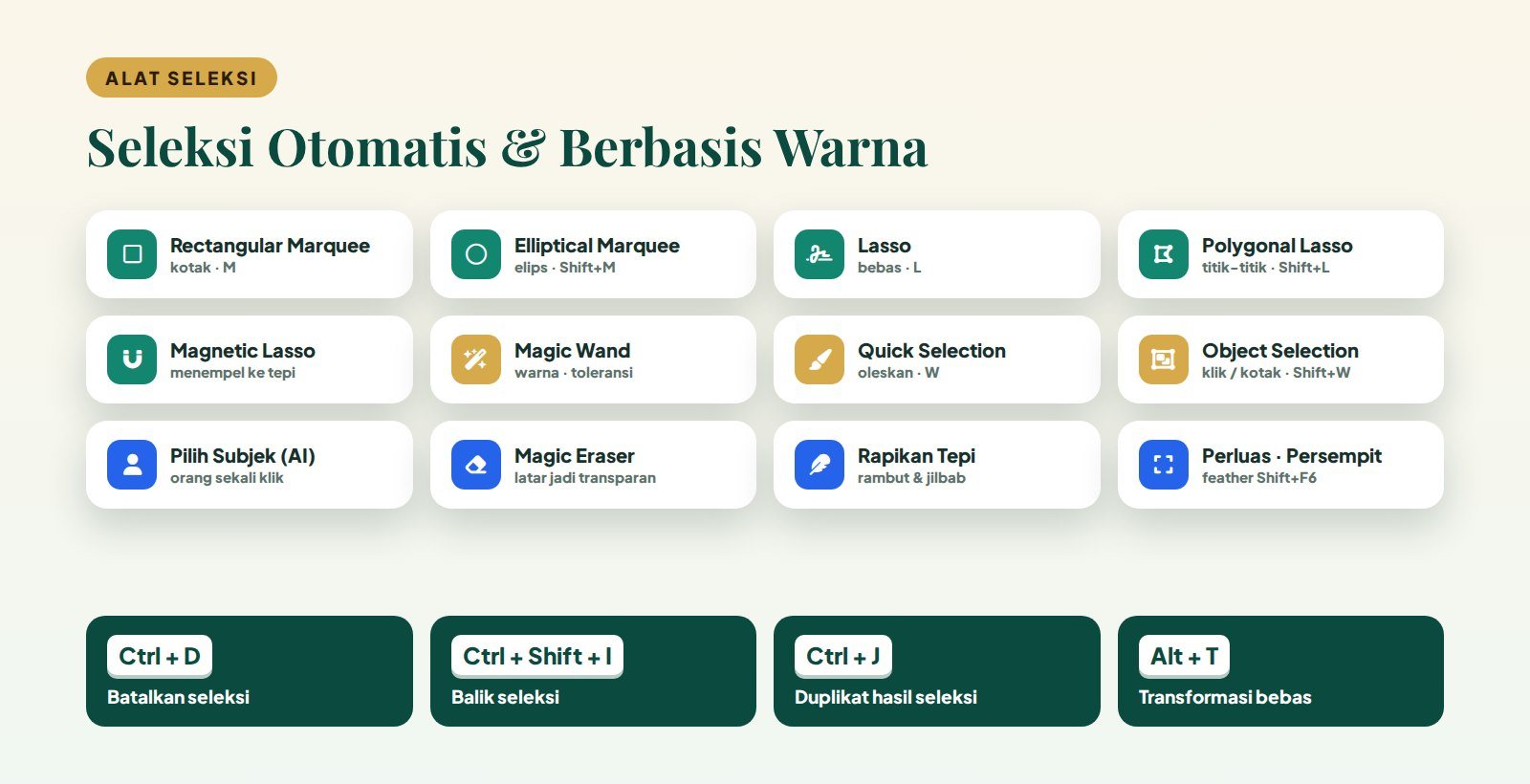
Automatic and color-based selection tools with the most-used keyboard shortcuts.
The shortcuts you will use most: Ctrl+D to deselect, Ctrl+Shift+I to invert the selection, and Ctrl+J to duplicate the selection to a new layer. Hold Shift to add to a selection and Alt to subtract from it.
Transformations: Perspective, Warp, Rotate, Skew, and Flip
Press Alt+T (or Edit → Free Transform) to reshape a layer or a selected area. The options bar offers five modes: Free (scale and rotate), Skew, Distort, Perspective, and Warp. Size can be typed in percent and rotation in degrees, and there are buttons for 90° rotation and horizontal/vertical flip. Press Enter to apply or Esc to cancel.
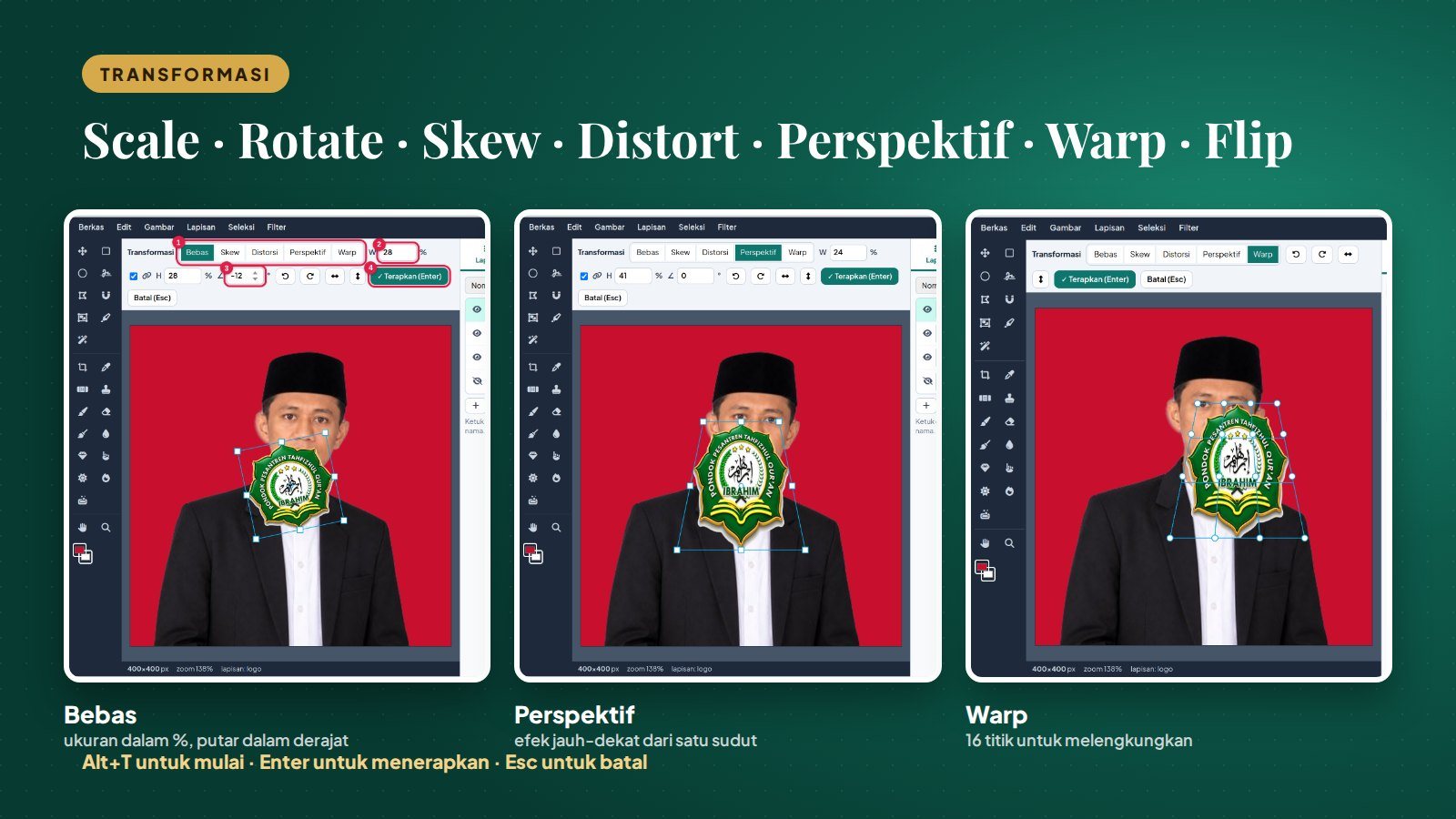
Three examples: free transform, perspective, and warp.
One small note: in web browsers, Ctrl+T is reserved for opening a new tab and cannot be taken over by a web page. That is why SIPANDAI uses Alt+T.
Brushes, Retouching, Crop, and Image Size
The retouching tools help you tidy up documentation photos without switching apps:
- Blur and Sharpen to soften or sharpen specific areas.
- Smudge to push color around.
- Dodge and Burn to lighten or darken shadows, midtones, or highlights.
- Sponge to increase or decrease color saturation.
- Spot Healing Brush to remove small blemishes or marks, and Clone Stamp to copy part of an image.
The Image menu offers image size in pixels or percent (for example, 50% to shrink a file before sending it on WhatsApp), canvas size with an anchor point to add empty space, and canvas rotation and flipping. The Crop tool has ready-made ratios: 1:1, 3:4 passport photo, 2:3, 16:9, 9:16, A4, and ID card.
For color there are Exposure, Brightness/Contrast, Levels, Hue/Saturation, Vibrance, Temperature/Tint, Shadows/Highlights, black and white, invert, Gaussian blur, Sharpen, noise reduction, and Pixelate. Pixelate is useful for hiding students' faces when a photo will be shared publicly before parental consent is given.
Save Transparent PNGs and Layered Projects
When saving (Ctrl+Shift+S), choose PNG to keep transparent areas transparent. This format suits logos, stickers, or cut-out portraits to be placed on posters. Choose JPG for ordinary photos and WEBP for small files on the web. The output size can also be set in percent.
Unfinished work can be saved as a layered project (Ctrl+S) and reopened tomorrow with all its layers. Studio results can also be sent to Design & Text to add titles and text.
Design & Text: Student ID Cards, Posters, and Social Media Posts
The third mode offers quick templates: student ID card, announcement poster, YouTube thumbnail, 1:1 post, 9:16 story, and greetings or achievements. Text can be given an outline (stroke), shadow, and color, and you can add the foundation or school logo, a photo from the editor, and a watermark. The result is downloaded at the exact pixel size of the template.
Why Build It Inside SIPANDAI?
There are three main reasons.
- Protecting student and staff data. Student photos are a trust placed in our hands. With this tool, photos do not need to be uploaded to background-removal websites run by people we do not know. Everything runs on your own device.
- Saving time. Work that used to move between three or four apps is now done in one place, with the account you already use every day.
- No subscription fees. There is no paid app to install. A browser on your phone or laptop is enough.
This update also extends access for the Board of Experts: their accounts can now open the Tools menu and monitor discipline, the MTs Daily Monitoring page, and mentor attendance as part of their quality-assurance role.
Who Can Use It and How to Get Started
The Tools → Photo Editing & Design menu is available to all teacher, staff, mentor, administration, leadership, and Board of Experts accounts. To begin:
- Sign in to SIPANDAI at santri.ibrahim.or.id (Teacher / Mentor / Staff login).
- Open Tools → Photo Editing & Design. On a phone, the menu is behind the ☰ button at the top left.
- Choose Photo Edit, Studio (Layers), or Design & Text.
Every feature works on a phone; use two fingers to zoom and pan. For very detailed work, such as selecting hair or warping, a laptop with a mouse is more comfortable.
Download the Full Guide (PDF)
We have prepared a 30-page guide that can be read on a phone or printed. It contains illustrated steps from passport photo backgrounds, selections, layers, transformations, retouching, cropping, and image size to saving PNGs and designing cards, plus a complete list of keyboard shortcuts and troubleshooting tips. The guide is written in Indonesian.
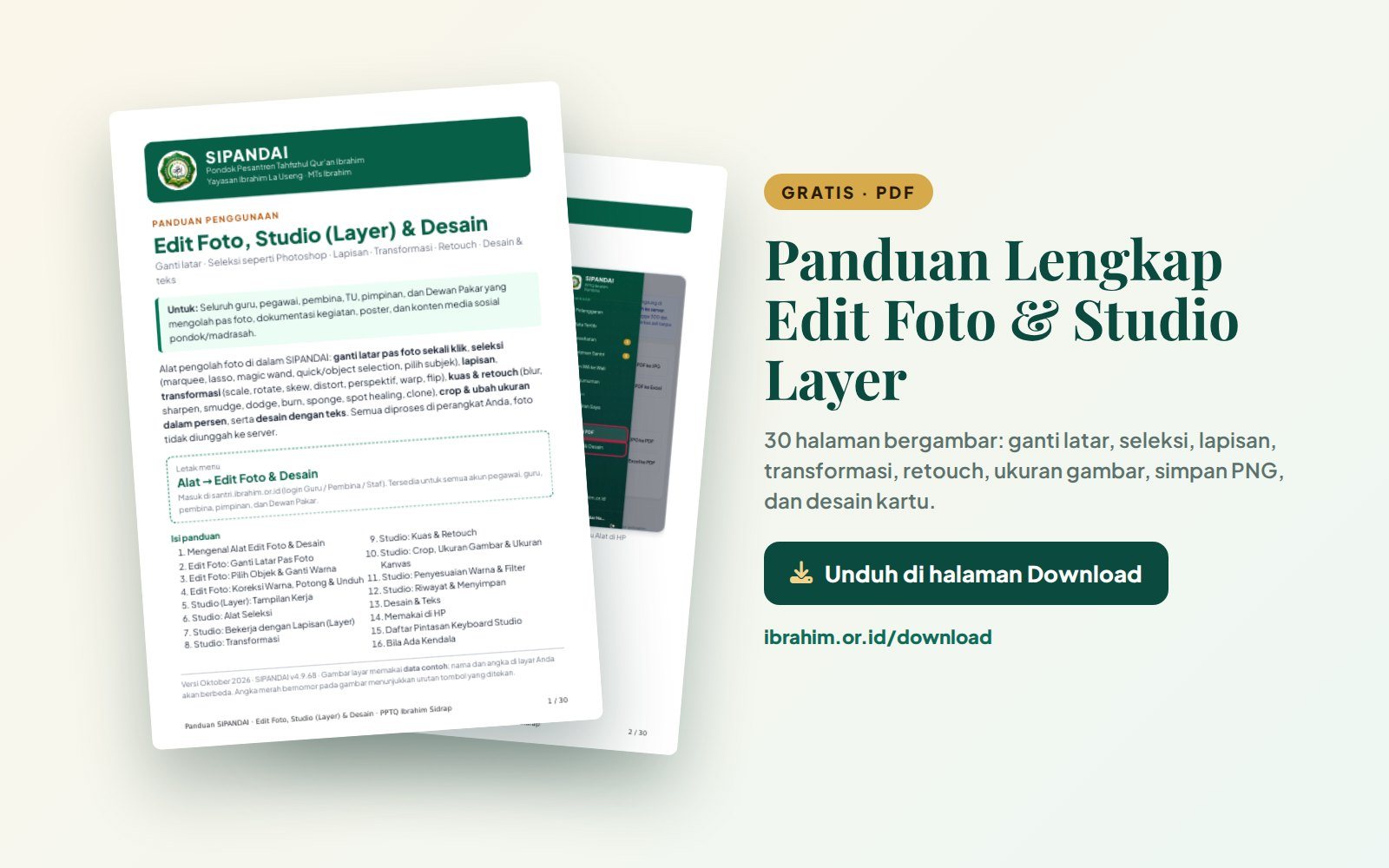
The PDF guide is free on the Download page.
Download it at ibrahim.or.id/download, in the SIPANDAI guides section (Panduan SIPANDAI Guru & Pembina).
Frequently Asked Questions
Are photos uploaded to the server?
No. Photos are processed on your own phone or laptop. Only the AI program is loaded from the internet, once, the first time it is used.
Can it be used offline?
SIPANDAI still needs an internet connection to open. Once the AI has loaded, editing requires no uploads at all, so it runs smoothly even on a weak signal.
Why are the Clothing and Hair options disabled?
Those options use the full AI model. If it has not loaded, only Subject and Background are available. An administrator can press Save AI model to server so the full model is always available.
How do I keep a PNG transparent?
Hide the background layer (eye icon) and choose PNG when saving.
Can parents use this tool?
For now the tool is available to teacher, staff, mentor, leadership, and Board of Experts accounts. Parents use the parent portal to follow their children.
Closing
We built this tool to make administrative and documentation work at PPTQ Ibrahim lighter, neater, and safer. If you run into a problem or have a feature request, please let the SIPANDAI administrator know. May it be of benefit and a continuing charity for all of us.
For parents looking for a tahfizh boarding school in Sidrap that is well organized and transparent, information on new student admissions at PPTQ Ibrahim is on the Admissions page.